
Reverse Image Search
Find visually similar images, exact matches, and image sources across the web with powerful AI image search.
Optional: paste a public image URL instead of uploading a file.
Select Search Engine for Reverse Image Search
Launch cross-platform visual queries immediately.
Upload an image and run your search first to enable these platform links.
Available in these languages
What Is a Reverse Image Search?
Reverse image search is a method of searching the web with an image rather than text. You can upload a photo from your device, drag and drop a file, or paste the URL of an image already published online. The search engine then compares visual characteristics—such as shapes, colors, objects, text, and patterns—to find pages containing the same or similar image.
Unlike a normal keyword search, a reverse photo search does not depend on a caption, file name, or description. That makes it especially useful when you have an image but do not know where it came from, who published it, or whether it has been reused in another context.
A reverse image lookup can help you:
Find the likely original source of a photo.
Discover websites that republished the same image.
Locate higher-resolution or alternative versions.
Find visually similar photos, products, places, or objects.
Check whether an image has appeared in an earlier news story.
Identify possible copyright infringement or unauthorized reuse.
Verify whether a viral photo is old, recycled, or misleading.
Reverse image search results are not always exhaustive. A search engine can only return pages it has indexed, so an image may exist elsewhere without appearing in every result set.
How To Reverse Image Search Online?
You can perform a reverse image search online in a few seconds. Upload a picture, paste an image URL, or drag and drop a file into the search field, then review the matching pages and visually similar results.

Select a photo, screenshot, product image, artwork, meme, or picture saved on your phone or computer.
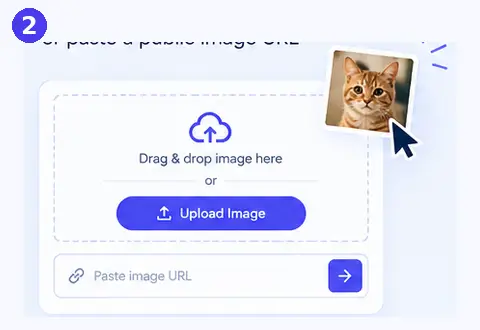
Use the upload button for a local file, drag and drop the image into the tool, or paste a public image URL.
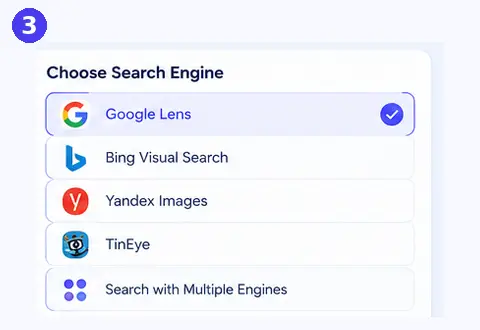
Select a photo, screenshot, product image, artwork, meme, or picture saved on your phone or computer.
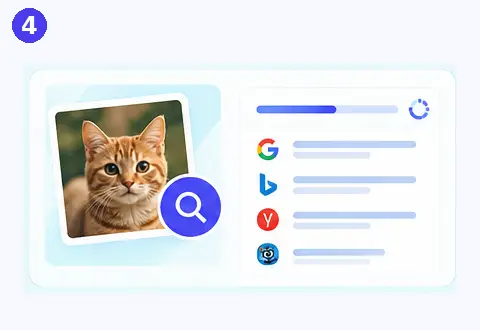
The tool analyzes the image and returns pages that contain matching or related visuals.
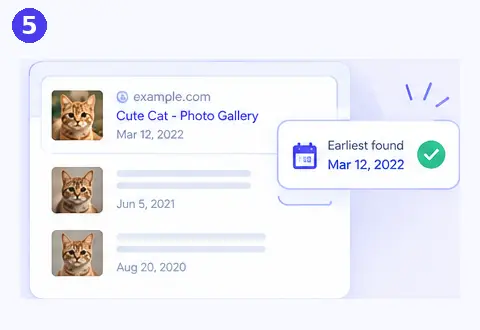
Open source pages, compare publication dates, check captions, and look for the earliest or most authoritative appearance.
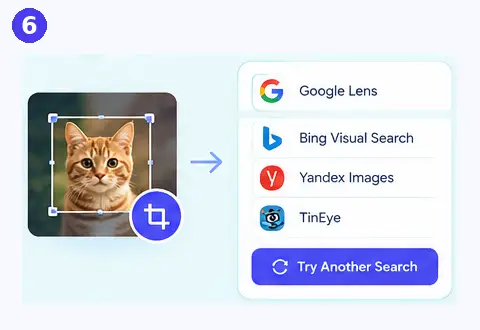
Crop the image, search a distinctive section, or try another search engine if the first results are too broad.
Search By Image URL
If the image is already online, copy its image address and paste it into the Search by Image URL field. This method is useful when you find a picture on a website, social post, news article, marketplace listing, or blog and want to know where else it appears.
To copy an image URL, right-click the image on desktop and choose Copy image address or Copy image link. On mobile, press and hold the image and select the equivalent option if your browser provides one. Then return to ReverseImageSearch.co, paste the URL, and start the search.
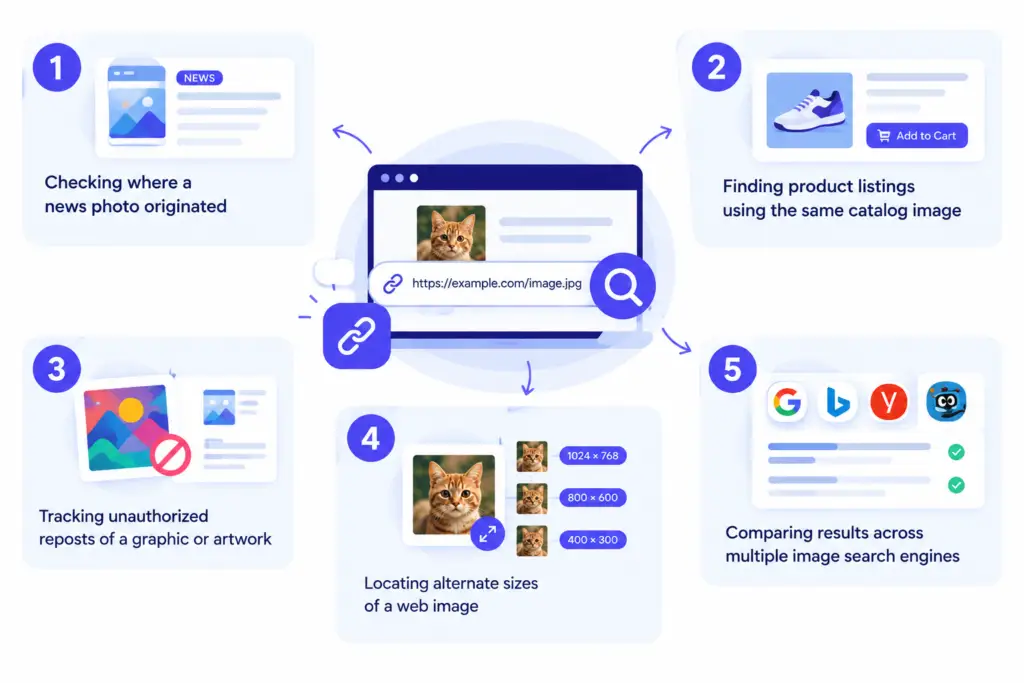
Upload A Photo From Mobile Or Desktop
If the image is saved on your device, use the Upload Image option. You can select a file from your phone gallery, computer folder, cloud storage download, or camera roll. Drag-and-drop is also available on desktop for a faster workflow.
Mobile users can perform a reverse image search on iPhone or Android by uploading a photo directly from the gallery or taking a new photo with the camera. This is useful for identifying products in stores, recognizing landmarks while traveling, checking suspicious profile pictures, or researching an object you photographed.
For best results, use a clear, uncropped image. Avoid screenshots with heavy overlays, watermarks, filters, or large text blocks when possible, because those elements can reduce matching accuracy.
Find The Original Source Of Any Photo
One of the most common reasons to use reverse image search is to find the original source of an image. When a photo spreads across social media, news sites, blogs, and forums, the earliest result is not always the most visible one. A reverse image search helps you trace the image back to pages where it may have first been published or indexed.
To find a photo source effectively:
Look for authoritative domains, such as official news organizations, photographer portfolios, brand websites, government pages, museums, or manufacturer listings.
Compare publication dates and identify the earliest credible appearance.
Check whether the image appears with a photographer credit, source link, product listing, or original caption.
Search for visually similar versions, because an image may have been cropped, resized, edited, or reposted.
Open several results rather than relying on the first match.
A reverse image search can reveal pages using the same or similar image, but it cannot guarantee that the top result is the true origin. Treat the results as investigative leads, then verify the publisher, date, context, and authorship before drawing a conclusion.
This approach is valuable for journalists, researchers, students, marketers, designers, and anyone who encounters an image without context. For a deeper workflow, see our guide to finding the original source of an image.
Find Similar Images And Visual Matches
Reverse image search does more than locate exact duplicates. It can also help you find similar images online by identifying photos that share visual characteristics with your original image. These may include different crops, edited versions, lower- or higher-resolution copies, related products, comparable artwork, or photos of the same place from another angle.
There are three main types of results:
| Result type | What it means | Best used for |
|---|---|---|
| Exact match | The same image appears on another page | Finding duplicates, reposts, and source pages |
| Visually similar match | The image has been edited, cropped, resized, or closely resembles another image | Finding alternate versions and related visuals |
| Contextual match | A page uses a related image or discusses the same subject | Research, shopping, and identification |
Similar-image search is especially useful for:
Shopping: Find the same product from other retailers or discover similar styles.
Design: Locate inspiration, alternative stock images, or higher-quality versions.
Research: Identify landmarks, artwork, animals, plants, products, and objects.
Content verification: Detect edited or recycled photos.
Brand monitoring: Find logos, campaign graphics, and promotional images reused across the web.
For a focused workflow, explore our guide on how to find similar images online.
Verify Photos, Detect Misinformation, And Check Image Authenticity
Reverse image search is one of the most practical tools for image verification. When a photo is shared with an emotional caption, breaking-news claim, or political narrative, searching the image can reveal whether it has appeared online before, whether it comes from a different event, or whether it is being reused out of context.
A strong verification workflow looks like this:

Upload the image or paste its URL.

Sort or inspect results for older publication dates and credible original sources.
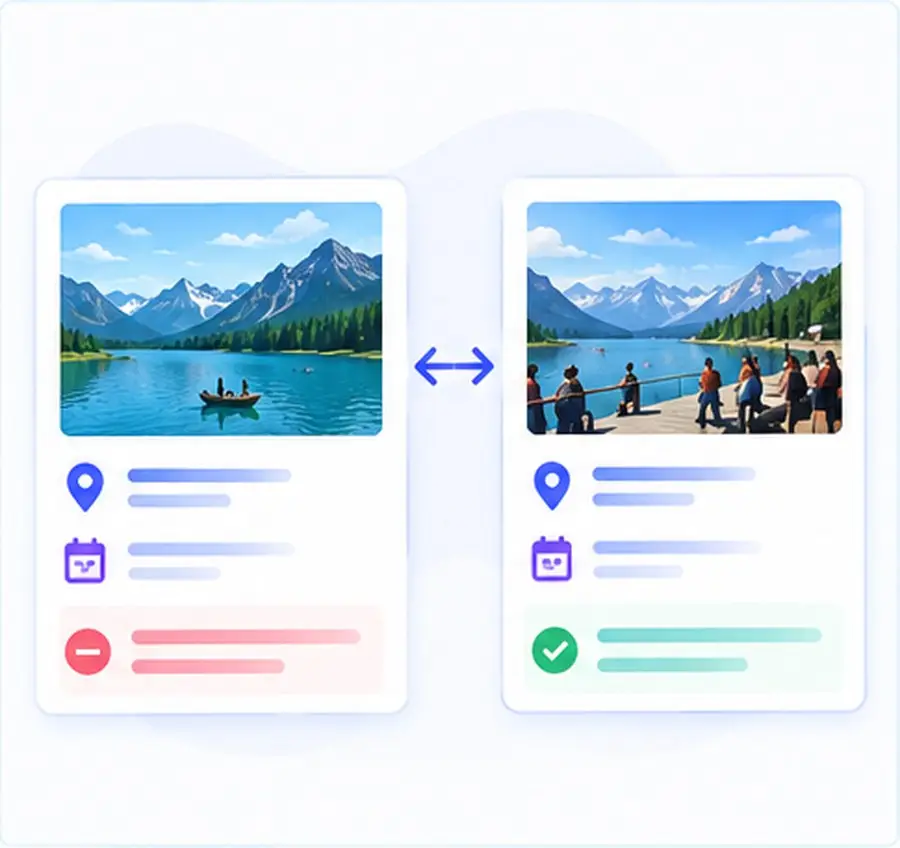
Check whether the location, event, date, people, and caption match the original source.
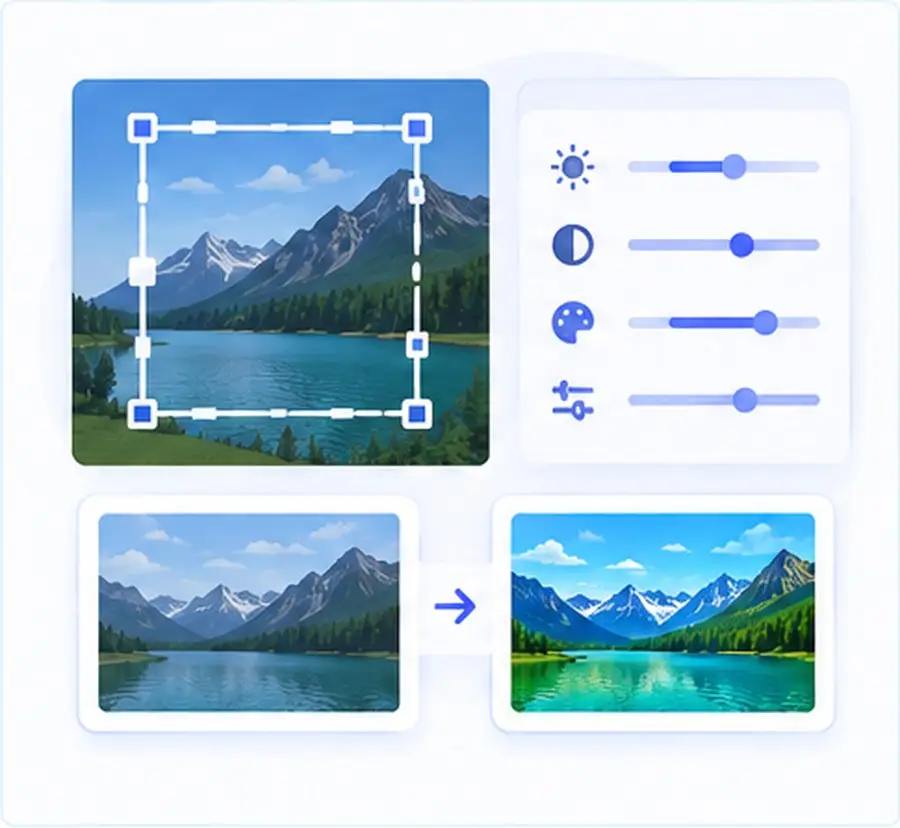
Compare the image with similar versions to identify cropping, recoloring, added text, or manipulated elements.

Favor established newsrooms, official institutions, photographers, and primary sources over anonymous social accounts.

Google Lens, Bing, Yandex, and TinEye may return different results because each has a different index and matching approach.
Reverse image search can help you determine whether a photo might be fake, old, or shared out of context, but it does not prove authenticity by itself. A real photograph can still be misleading if it is captioned incorrectly or reused from an unrelated event.
Check If A Photo Is Real Or Fake
To check whether a photo is real or fake, search the image and examine the earliest credible results. If the same photo appeared years earlier in a different country, event, or news story, the current claim is likely false or misleading.
Also look for visual inconsistencies, such as unnatural shadows, distorted hands, mismatched lighting, blurred edges, repeated patterns, or text that does not align with the scene. However, visual inspection alone is not enough; reverse image search provides external evidence by showing where else the image has been published.
Identify Edited, Cropped, Or Recycled Images
Edited images often retain enough visual similarity to appear in reverse image results. A cropped screenshot may remove a date, location, logo, or surrounding scene that would reveal the original context. A reverse search can surface the uncropped version, related frames, or the original publication.
Recycled images are also common during breaking news, disasters, protests, and political events. An authentic photo from one event may be reposted with a false claim about another event. Reverse image search helps expose that pattern by connecting the image to its earlier appearances.
For a complete fact-checking process, read our guide on how to check if a photo is fake.
Reverse Image Search Use Cases
A reverse photo search is useful across many everyday and professional tasks. The same core process; uploading or linking an image and reviewing visual matches—supports shopping, research, design, journalism, brand protection, and image rights management.
Find Where A Photo Came From
Use reverse image search to identify the original publisher, photographer, news article, product page, or social account associated with a picture. This is useful when an image has no caption, credit, date, or context.
Search Products By Image
Upload a product photo to find similar products, retailer listings, pricing pages, and alternative versions. Visual product search is helpful when you do not know the brand name or product model but have a photo of the item.
This use case is common for fashion, furniture, electronics, home décor, collectibles, and accessories. A reverse image search can surface product pages and visually related shopping results, helping users move from “I saw this somewhere” to a purchasable product.factcheck.afp+1
For a dedicated workflow, see how to search for a product using an image.
Find Copyright Infringement And Stolen Images
Photographers, illustrators, artists, agencies, and businesses can use reverse image search as an image copyright search tool. Upload your original work to discover websites, blogs, marketplaces, and social pages that may be using it without permission.
This does not replace a formal copyright review or legal advice, but it can help you identify potential unauthorized uses. Save screenshots, record URLs, note publication dates, and document the matching results before contacting a website owner or filing a takedown request.
Learn more in our guide to image copyright search and finding stolen images.
Identify Places, Objects, And Unknown Images
If you have a photo of a landmark, plant, animal, artwork, logo, vehicle, or object, reverse image search can help you find pages that identify or explain it. Google Lens is particularly associated with object, landmark, and product recognition, while other engines may surface different visual matches.
Find Higher-Resolution Versions
A low-quality or compressed image can often be traced to a larger original version. Reverse image search can reveal the same picture on portfolio sites, news pages, stock libraries, or product listings where a higher-resolution file may be available.
Reverse Image Search On Google, Bing, Yandex, And TinEye
Different image search engines maintain different indexes and visual-matching systems. Searching one engine can be useful, but comparing results across Google Lens, Bing Visual Search, Yandex Images, and TinEye often produces a more complete picture.
| Search engine | Strength | Best for |
|---|---|---|
| Google Lens / Google Images | Broad web index, object recognition, product and landmark identification | General reverse image search, shopping, identification |
| Bing Visual Search | Related images, product discovery, and visual exploration | Shopping, design inspiration, related visuals |
| Yandex Images | Strong visual similarity matching and facial/location-oriented results | Hard-to-find matches, people, locations, similar photos |
| TinEye | Exact-match and modified-image tracking | Finding duplicates, edits, and image reuse |
Google Reverse Image Search
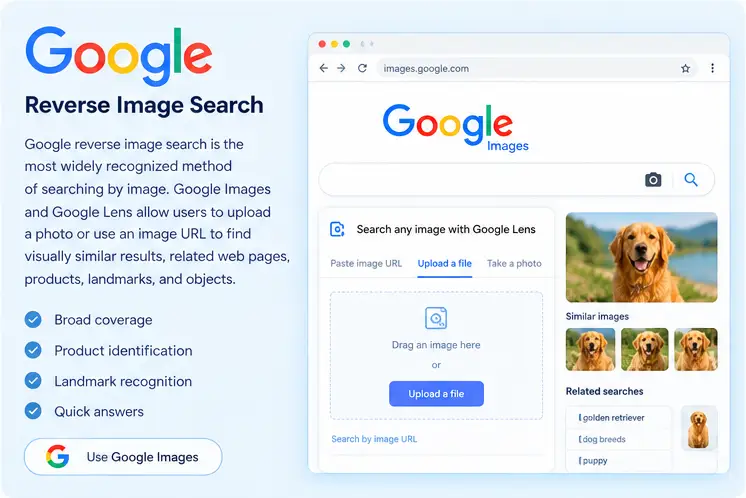
Google reverse image search is the most widely recognized method of searching by image. Google Images and Google Lens allow users to upload a photo or use an image URL to find visually similar results, related web pages, products, landmarks, and objects.
Use Google when you want broad coverage, product identification, landmark recognition, or a quick answer about an object in a photo. For a detailed walkthrough, see Google reverse image search.
Bing Reverse Image Search
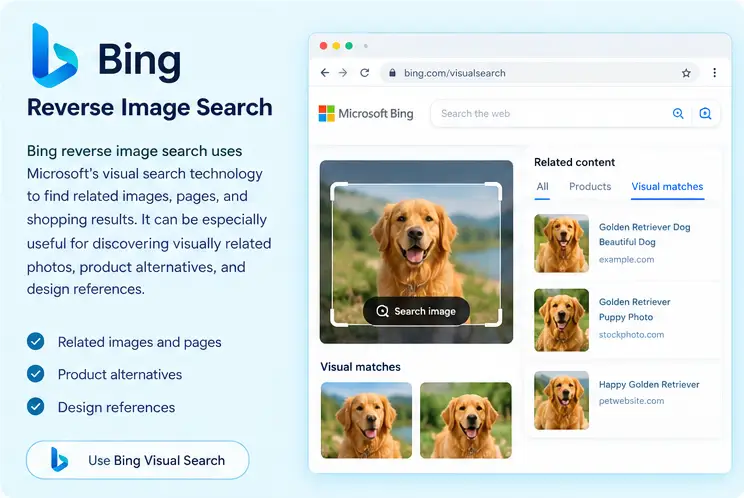
Bing reverse image search uses Microsoft’s visual search technology to find related images, pages, and shopping results. It can be especially useful for discovering visually related photos, product alternatives, and design references.
Use Bing when Google’s results are too generic or when you want a second index for comparison.
Yandex Reverse Image Search
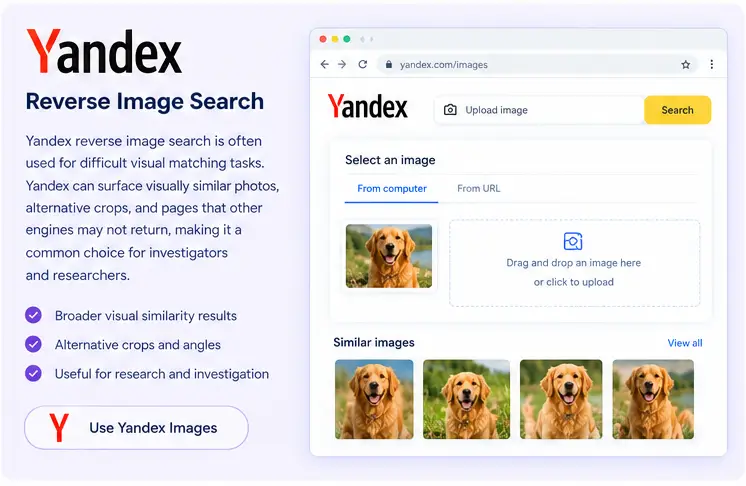
Yandex reverse image search is often used for difficult visual matching tasks. Yandex can surface visually similar photos, alternative crops, and pages that other engines may not return, making it a common choice for investigators and researchers.
Use Yandex when you need broader visual similarity results or when an image has been heavily edited or reposted. See our guide to Yandex reverse image search for a focused tutorial.
TinEye Reverse Image Search
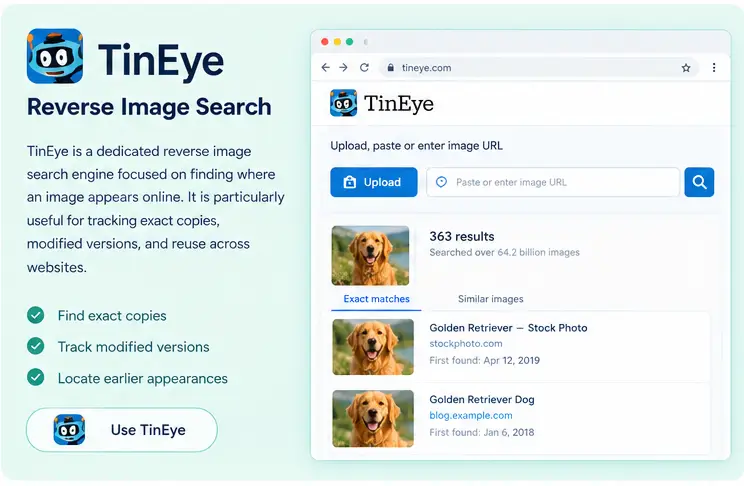
TinEye is a dedicated reverse image search engine focused on finding where an image appears online. It is particularly useful for tracking exact copies, modified versions, and reuse across websites.
Use TinEye when your main goal is duplicate detection, image tracking, or locating earlier appearances of a specific photo.
Reverse Image Search On IPhone And Android
You can use reverse image search on iPhone and Android without installing a separate app. Open ReverseImageSearch.co in your mobile browser, upload a photo from your gallery, take a new picture, or paste an image URL.
Mobile reverse image search is useful for:
Identifying a product in a store
Checking a suspicious profile photo
Researching a landmark while traveling
Verifying an image received in a messaging app
Finding a higher-quality version of a saved picture
Identifying a plant, animal, artwork, or object
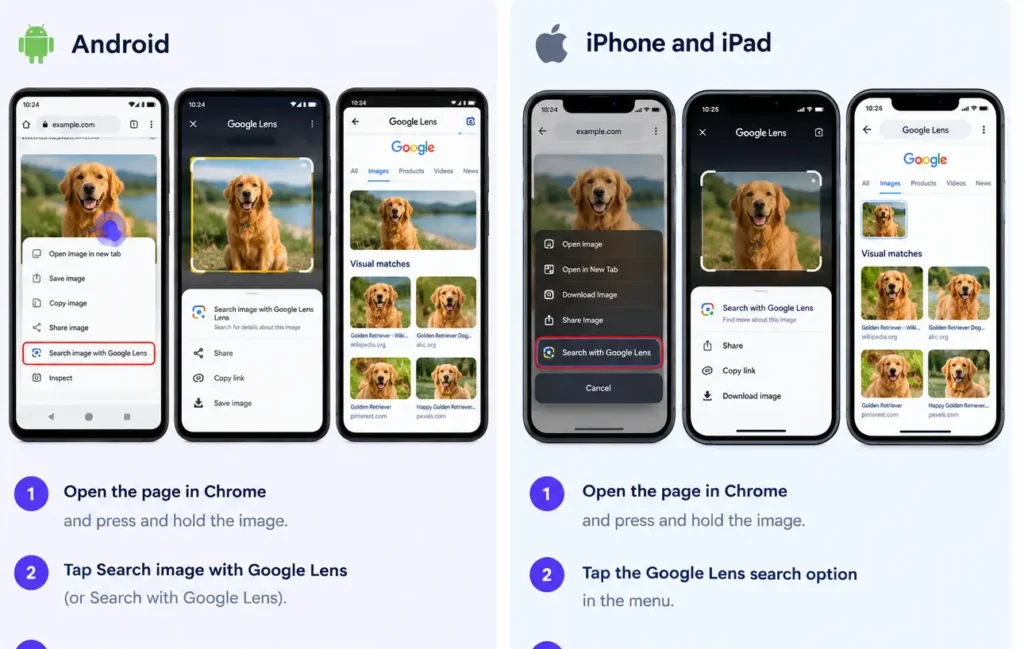
On some mobile browsers, you can also long-press an image on a webpage and choose an option such as Search Google for this image, depending on the browser and device.
For device-specific instructions, see reverse image search on iPhone and reverse image search on Android.
Why Use ReverseImageSearch.co?
ReverseImageSearch.co is designed to make image-first search simple, fast, and accessible. Instead of opening multiple websites and repeating the same upload process, you can search by image from one place.
Key benefits include:
Free reverse image search: Search by image without paying for a subscription.
Multiple input methods: Upload a photo, drag and drop a file, or paste an image URL.
Mobile-friendly workflow: Search from an iPhone, Android phone, tablet, or desktop.
Source discovery: Find possible original publishers and pages using the same image.
Similar image results: Locate edited, cropped, resized, and visually related photos.
Verification support: Investigate recycled, miscaptioned, or potentially misleading images.
Multi-engine comparison: Use supported engines such as Google Lens, Bing, Yandex, and TinEye to broaden coverage.
The best reverse image search workflow depends on your goal. For source research, compare dates and authoritative publishers. For shopping, prioritize product pages and visually similar listings. For verification, cross-check multiple engines and look for the earliest credible appearance.
Feel Free To Contact Us:
Did you find what you were looking for? If you still have questions or need further assistance, please feel free to contact us. Our support team is available 24/7 to address your concerns and help you find the answers you need.
Frequently Asked Questions
What is a reverse image search?
A reverse image search lets you use an image instead of text to find related web pages. You upload a photo or paste its URL, and the search engine returns matching pages, possible original sources, and visually similar images.
How do I reverse image search a photo?
Upload the image, drag and drop it into the search box, or paste a public image URL. Choose a search engine, click Search, then review matching pages, similar photos, and possible source links.
Can I find the original source of an image?
Yes. Reverse image search can show pages using the same image and help identify the likely original publisher or earliest indexed appearance. Always verify the source, date, author, and context before treating a result as definitive.
Is reverse image search free?
Yes. ReverseImageSearch.co provides a free online reverse image search. You can upload an image or paste an image URL to find matching pages and similar images.
Can I do a reverse image search on iPhone or Android?
Yes. Upload a photo from your phone gallery, take a new photo, or paste an image URL. The tool works in mobile browsers as well as on desktop computers.
Can reverse image search find similar photos?
Yes. It can return exact matches and visually similar images, including cropped, resized, edited, filtered, or related versions of the original photo.
Can I check if a photo is fake?
Reverse image search can help you check whether a photo has appeared elsewhere, been reused from another event, or circulated with a different caption. It is a verification aid, not definitive proof of authenticity.
Can I search for a product using a photo?
Yes. Upload a product photo to find similar products, retailer pages, alternative listings, and visually related shopping results.
Can I find stolen images or copyright infringement?
Yes. Upload your original image to discover websites and pages that may be using it without permission. Save the results and review them carefully before taking any copyright-related action.
Is it safe to upload photos
Upload only images you have the right to search and avoid sharing private or sensitive photos unless you understand the tool’s data policy. Review whether images are stored temporarily, retained, or shared with third-party search engines before uploading confidential material.
Why do Google, Bing, Yandex, and TinEye show different results?
Each service has its own image index, crawling frequency, ranking system, and visual-matching technology. Searching multiple engines can reveal results that a single platform misses.
What is the best reverse image search tool?
The best tool depends on your goal. Google Lens is strong for general identification and shopping, Bing is useful for related visuals, Yandex is often effective for difficult visual matches, and TinEye is useful for tracking duplicates and modified images.