
Reverse image search on Chrome lets you search with any image on a page or on your device using right-click, Google Lens, an uploaded file, or an online tool that compares several engines. You do not need an extension for any of the four methods below.
Use it to find where a photo came from, locate a larger version, identify a product, or check whether a picture has been used somewhere else. If you are new to the topic, start with our complete guide to reverse image search.
Quick answer: which method should you use?
| Your situation | Best method |
|---|---|
| The image is on a web page | Right-click and search with Google Lens (Method 1) |
| The image is saved on your computer | Upload it (Method 2) |
| You are on your phone | Chrome mobile (Method 3) |
| You want more than one engine’s results | ReverseImageSearch.co (Method 4) |
Method 1: Right-click and search with Google Lens
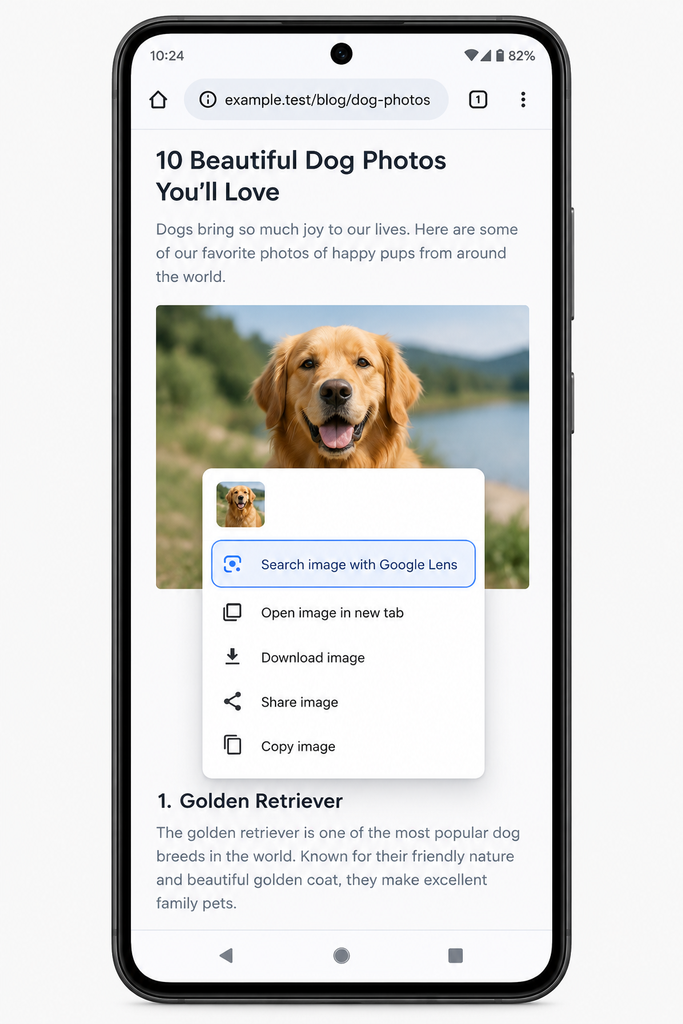
This is the fastest way when the image is already on a web page.
- Open the page that contains the image in Chrome.
- Right-click the image.
- Choose the option labelled Search image with Google Lens (the wording varies slightly by Chrome version).
- Chrome opens Lens results, usually in a side panel or a new tab.
- Review the Visual matches and Find image source results and open the pages that look relevant.
If you want to search only part of the image, drag the selection handles in Lens to the most distinctive area and the results update. Searching a single object such as a product or landmark often returns cleaner matches than searching a whole busy scene.
Method 2: Search with an image saved on your computer
Use this when the picture is a file on your device, such as a download or a photo from your camera.
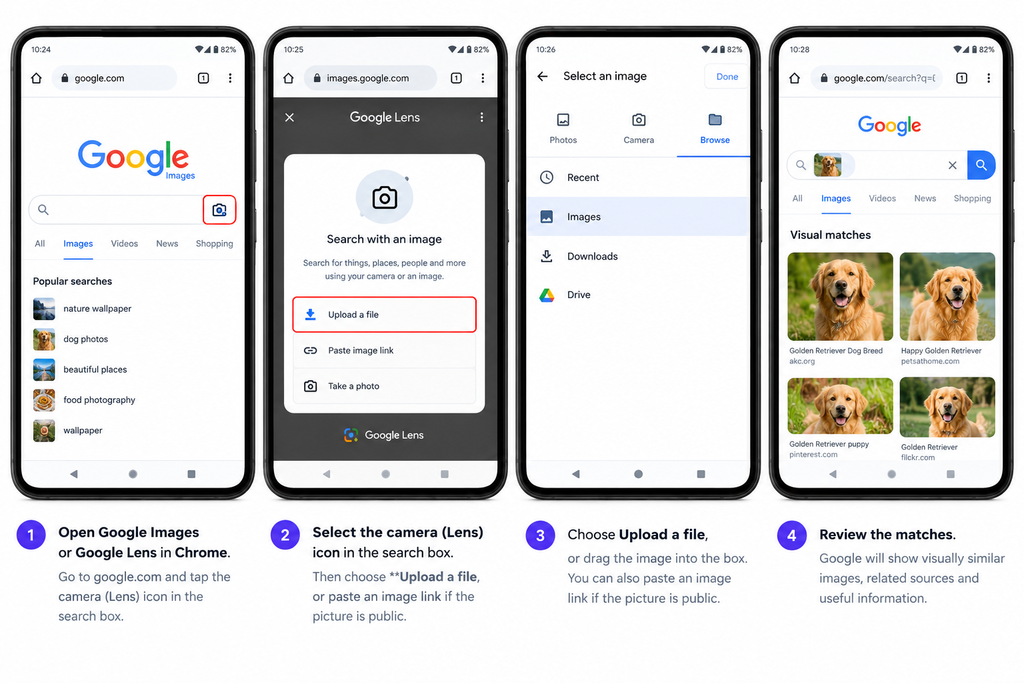
- Open Google Images or Google Lens in Chrome.
- Select the camera (Lens) icon in the search box.
- Choose Upload a file, or drag the image into the box. You can also paste an image link if the picture is public.
- Review the matches.
Google may also show a Lens option in the address bar or a Lens shortcut for images on some pages, depending on your Chrome version and region.
Tip: If you only have the image’s web address, you can paste it instead of downloading the file first. See how to search by image URL.
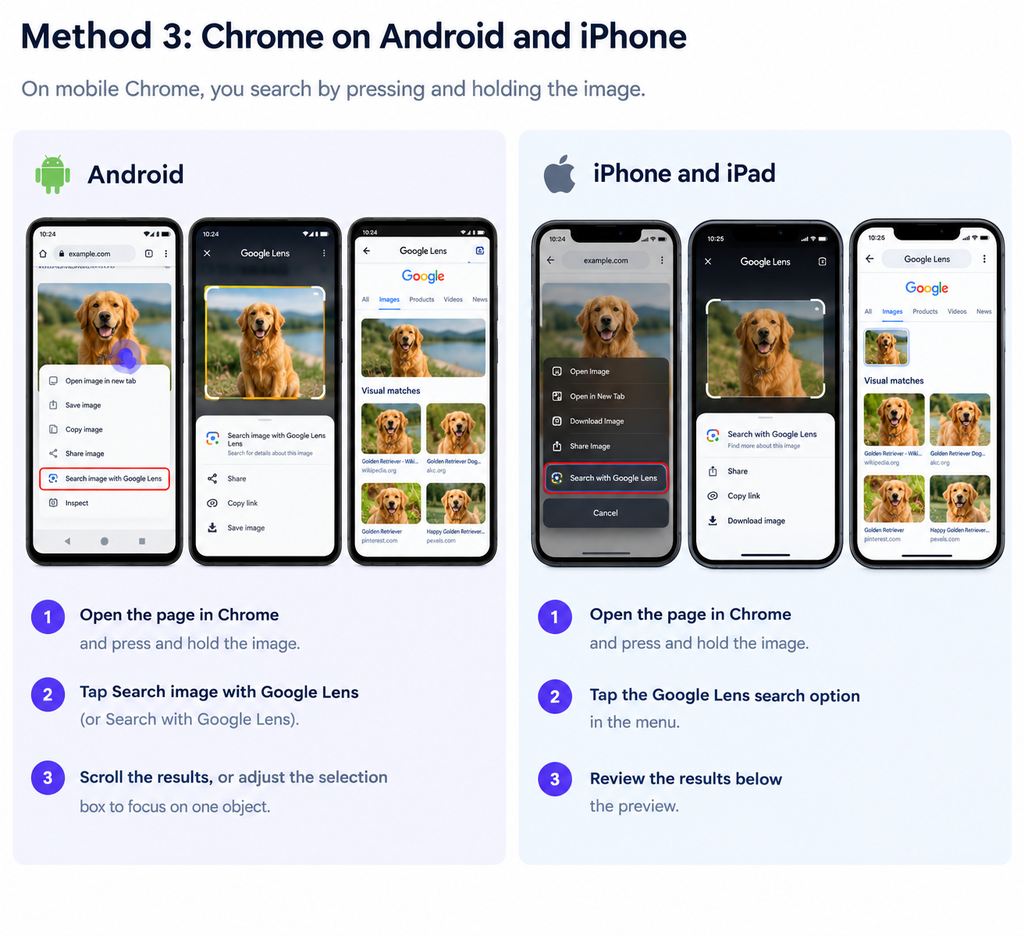
Method 3: Chrome on Android and iPhone
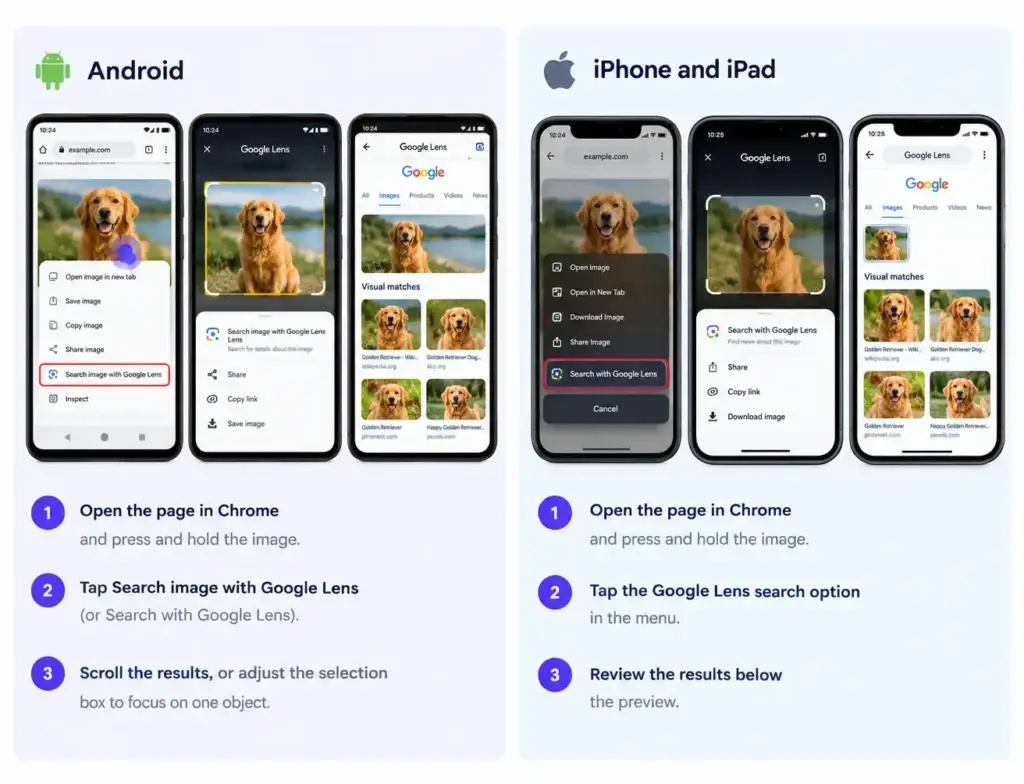
On mobile Chrome, you search by pressing and holding the image.
Android
- Open the page in Chrome and press and hold the image.
- Tap Search image with Google Lens (or Search with Google Lens).
- Scroll the results, or adjust the selection box to focus on one object.
iPhone and iPad
- Open the page in Chrome and press and hold the image.
- Tap the Google Lens search option in the menu.
- Review the results below the preview.
For images saved in your gallery, use the Google app with the Lens icon, or upload the file to ReverseImageSearch.co from your phone browser. For full phone guides, see reverse image search on iPhone and reverse image search on Android.
Method 4: Compare Google, Bing, Yandex and TinEye in one place
Google Lens is a strong first step, but no single search engine indexes the whole web. An image that Google cannot match may still appear in another index, and each engine ranks matches differently.
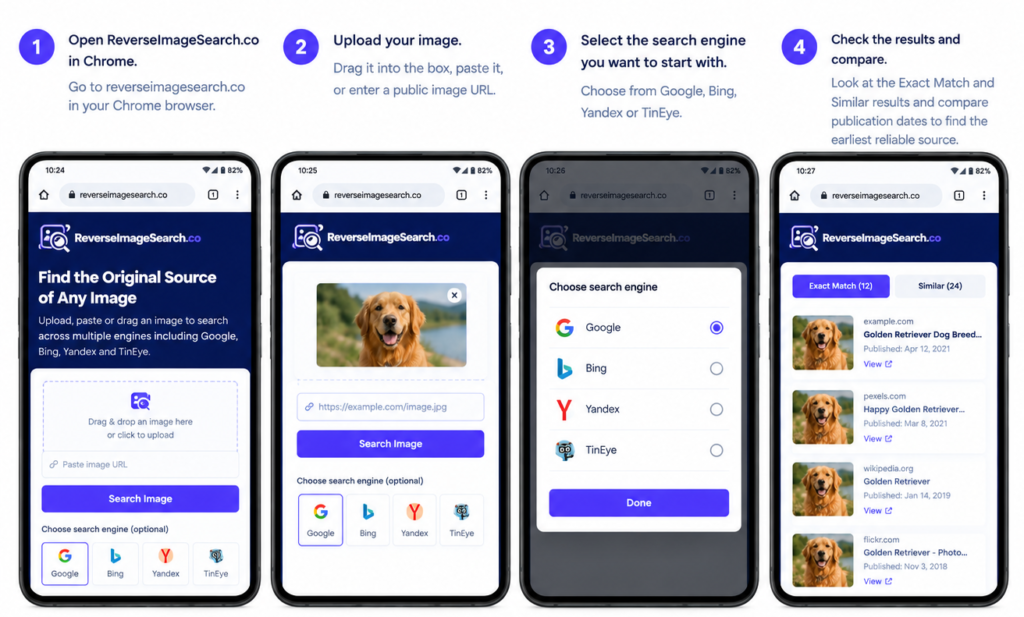
With ReverseImageSearch.co, you can run the same image through more than one engine from a single upload:
- Open ReverseImageSearch.co in Chrome.
- Upload your image, drag it into the box, paste it, or enter a public image URL.
- Select Search Image. [CONFIRM: if an engine selector exists, add “Choose the search engine you want to start with.”]
- Check the Exact Match and Similar results and compare publication dates to find the earliest reliable source.
Searching beyond Google is especially useful for edited, cropped, or reposted images, and for fact-checking. Learn how the engines differ in our Google reverse image search guide and best reverse image search tools comparison.
Why Chrome results can be limited
Chrome itself does not run the search. It passes your image to Google Lens, so your results are limited by what Google has indexed and how Lens interprets the picture.
- Lens favors objects and products. It is very good at identifying a plant, landmark, or item, and can be less helpful for tracing an image’s history or exact origin.
- Newly published or private images may not be indexed yet.
- Heavily edited images, such as filtered, mirrored, or text-overlaid versions, may match only loosely.
- Region and account settings can change which results appear.
Treat any result as a lead, not proof. Check the publisher, date, and context before you rely on it.
Troubleshooting
| Problem | What to try |
|---|---|
| The right-click option is missing | Update Chrome, make sure Google is your default search engine, and test on a different page. Some sites block image menus. |
| Lens does not open or shows a blank panel | Disable extensions that block scripts, then try an Incognito window. |
| Results are unrelated | Crop to the main subject, use a higher-resolution copy, or remove borders and overlays. |
| No results at all | See why reverse image search finds no results. |
| You need a different engine | Use Yandex, Bing or TinEye through a comparison tool. |
Does Chrome have reverse image search built in?
Yes. Chrome includes a right-click option that searches the image with Google Lens, so you do not need an extension.
How do I reverse image search on Chrome without right-clicking?
Upload the image to Google Images or Google Lens using the camera icon, paste an image URL, or use an online tool like ReverseImageSearch.co.
Can I reverse image search on Chrome on my phone?
Yes. Press and hold an image in Chrome on Android or iPhone and choose the Google Lens search option, or upload the image through your mobile browser.
Is Google Lens the same as Google reverse image search?
Lens is Google’s current image search experience. It does more than classic reverse image search because it can also identify objects, text, and products inside the picture.
What if Google finds nothing?
Try a cropped or higher-resolution version, then repeat the search in another engine. Different indexes often return different results.
Related guides